
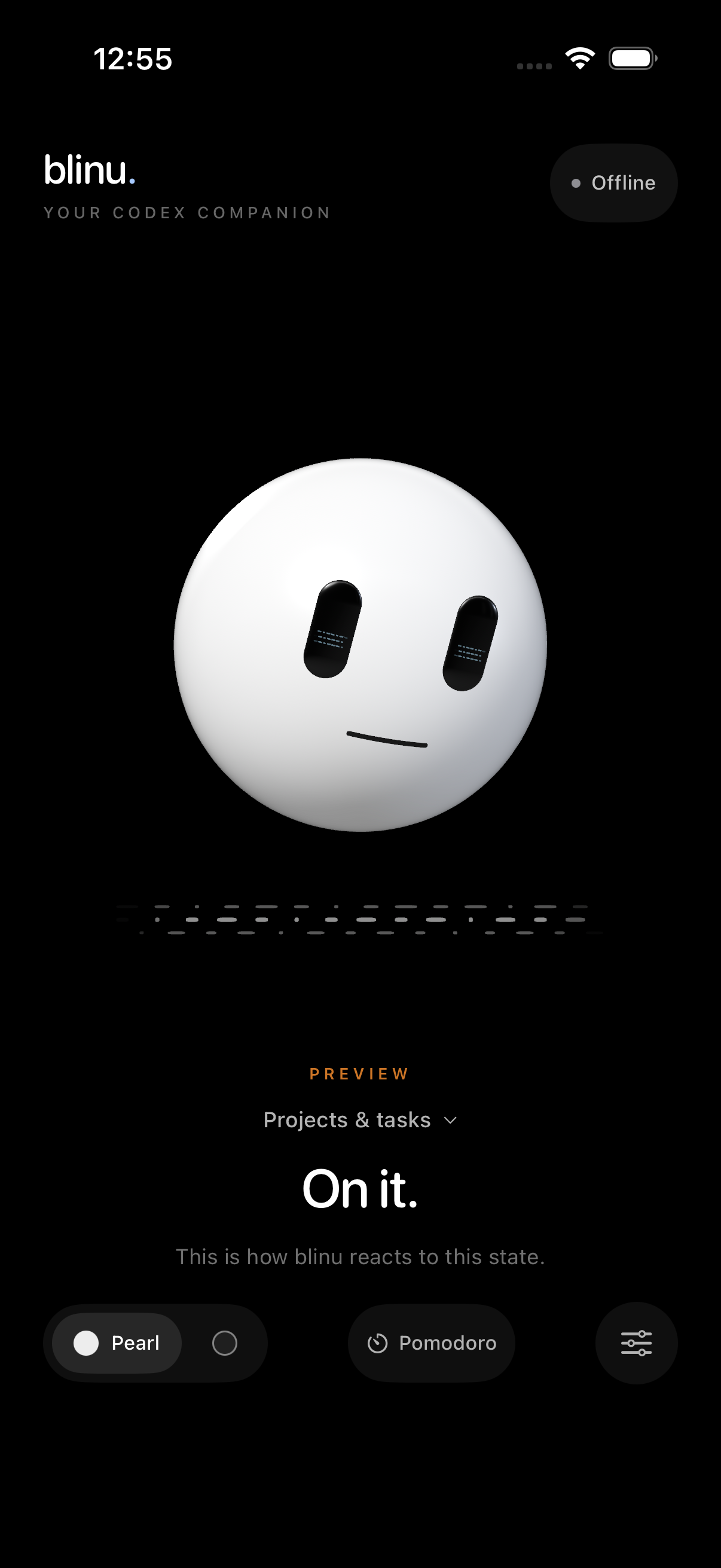
Codex is working
The character shows that a task is running. With several tasks, the little companions and task overview help you keep track.
blinu gives your Codex tasks a face on your iPhone. Here is how to connect your Mac, choose your projects and see when you are needed again.
We will announce supported devices and system versions when the beta starts.
These steps begin once both apps are installed through your beta access. You choose which projects blinu can follow.
Open blinu link on your Mac. On first launch, choose “Begin setup” and connect your Mac and iPhone to the same Wi-Fi network.
On your Mac, choose “Pair iPhone with QR code …”. Open the connection view in blinu on your iPhone, tap “Scan QR code” and confirm the recognised Mac.
Allow local network access and camera access for scanning. Without the camera, you can enter or explicitly paste the full invitation from blinu link. The invitation contains your connection key; share it only with your own devices.
In blinu link, choose “Set up blinu in a project …” and select the project folder. Review the changes shown before saving them. You can add or disconnect individual projects later.
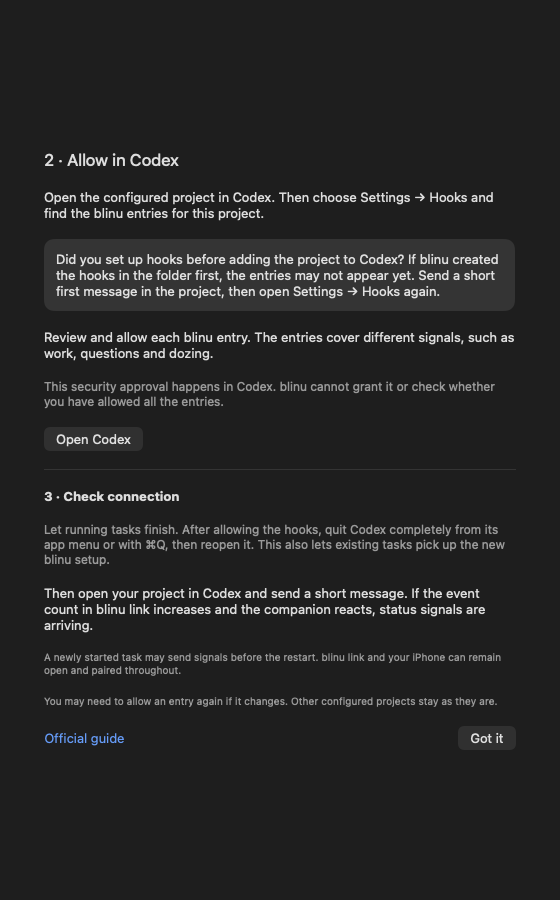
Open the configured project in Codex. Under Settings → Hooks, find the blinu entries for this project. These entries pass on status signals. Review and allow each entry.
This security approval takes place in Codex. blinu cannot grant it for you or tell whether you have already allowed every entry.
Let running Codex tasks finish first. After approval, quit Codex completely using the app menu or ⌘Q, then reopen it. This lets existing tasks pick up the new setup too.
Start a short task in your project. If the event counter in blinu link increases and the character on your iPhone reacts, status signals are arriving. Review the response and the work in Codex on your Mac.
Give blinu a spot beside you. While Codex works, the character keeps you company – and shows you in the open app when you are needed again.
First connect your iPhone to blinu link over Wi-Fi. In blinu, open Settings → Push notifications, enable push and allow Apple’s notification prompt. Select the events you want to hear about. Once “Push is active” appears, you can lock your iPhone. Delivery then only needs internet access; the live view still requires the same Wi-Fi network. Your Apple Watch can mirror iPhone alerts if you allow blinu notifications in the Watch app.
The character shows that a task is running. With several tasks, the little companions and task overview help you keep track.
Blue eyes and a questioning look indicate an open question or required approval. Automatic approval checks have their own state. You reply and make decisions in Codex on your Mac.
A brief green blink signals the end of a response. blinu then settles down again. You still check in Codex whether the task was completed successfully.
Check that blinu link is running, both devices are on the same Wi-Fi network and blinu has local network access. Some guest networks keep devices isolated. Pairing alone does not replace a reachable Wi-Fi connection.
If you configured the folder in blinu link before adding the project in Codex, the entries may not appear at first. Open the project, send a short first message and reopen Settings → Hooks. Review and allow the blinu entries there. Then follow the connection check step.
For new live status data, open blinu and check the Wi-Fi connection to your Mac. For alerts while your iPhone is locked, enable push in blinu and allow notifications in iOS. Also check that blinu link is running, both devices have internet access and no Focus setting is suppressing alerts. With a paired Apple Watch, alerts may appear there instead of on your iPhone.
blinu link transfers status data and project metadata directly to your paired iPhone over an encrypted Wi-Fi connection. No blinu account is needed, and this live connection does not use a blinu server. If you enable push, our own service processes the device association, your Apple push token and neutral event notices for delivery through Apple APNs. Project and task names and conversation content are not sent to the push service.
Prompts, responses and tool results are not transferred to your iPhone over this status connection. On your Mac, such content may be processed briefly to determine the status. The app privacy notice explains what data is involved and how to delete it.
Privacy for blinu and blinu linkJoin the waitlist and confirm your email address. When we can invite you to the closed beta, you will receive the next steps in a separate email.